

How to Reset MyQ Garage Door Opener
If you need to reset your MyQ garage door opener, start by checking the basics, including power, Wi-Fi signal, app settings, and wall button operation. If those checks do not fix the issue, reconnecting or resetting MyQ may clear old Wi-Fi settings and help you set up the system again through the MyQ app.
Before continuing, determine whether you need to reconnect Wi-Fi, remove the opener from the app, reset a MyQ Smart Garage Hub, or perform a full factory reset. These actions are different, and a full reset may erase remotes, keypads, HomeLink connections, or other programmed accessories on some models.
How Do You Reset a MyQ Garage Door Opener?
The correct way to reset a MyQ garage door opener depends on the device and the problem you are trying to solve.
For many connection problems, you only need to place the opener into Wi-Fi setup mode and reconnect it through the MyQ app. If the app shows an old or duplicate opener, removing the device and adding it again may solve the problem. A separate MyQ Smart Garage Hub has its own setup and reset process.
Do not rely on one universal Learn or Program button sequence. Button functions, hold times, and indicator lights vary by model. Holding the button too long may erase remotes, keypad programming, or other accessories.
The sections below will help you match the correct steps to your device.
What Is MyQ?
MyQ is a smart garage door system from Chamberlain Group. It is commonly found on Chamberlain, LiftMaster, and some Craftsman garage door openers. MyQ connects your garage door opener to your home Wi-Fi so you can control and monitor the door through the MyQ mobile app.
With the MyQ app, you can open or close your garage door from your phone, check whether the door was left open, and receive activity alerts. It provides additional control without requiring another handheld remote.
When people talk about resetting MyQ, they usually mean reconnecting Wi-Fi, clearing old network settings, or removing the opener from the app so it can be added again. This is different from reprogramming a handheld remote.
When Should You Reset a MyQ Garage Door Opener?
You may need to reset or reconnect MyQ if the opener will not stay connected to Wi-Fi, stops working after a router or password change, or no longer appears correctly in the app.
Removing and reconnecting the device may also help when the app shows repeated errors, an outdated opener, or a duplicate listing.
If you are moving, selling your home, or transferring the opener to a new owner, removing the device from your account can protect your privacy and allow the next person to set it up properly.
A MyQ reset will not fix an opener that makes unusual noises, struggles to lift the door, reverses unexpectedly, or does not respond from the wall button. Those symptoms may point to a mechanical, electrical, sensor, or opener hardware problem.
Which MyQ Reset Do You Need?
| If This Is Happening | Try This Reset |
|---|---|
| The MyQ app says the opener is offline | Check power and Wi-Fi, then reconnect the device |
| You changed your router or Wi-Fi password | Update or reconnect the Wi-Fi settings |
| The Smart Garage Hub will not pair | Restart the hub and repeat the setup process |
| The app shows an old or duplicate opener | Remove the outdated device from the app |
| The opener is linked to a previous owner | Remove it from the old account or follow ownership-transfer instructions |
| The garage door will not move from the wall button | Check the opener or door system before resetting MyQ |
Types of MyQ Devices and Why Reset Steps Are Different
MyQ technology comes in more than one form, and the way you reset or reconnect it depends on which type you own. If you are not sure what you have, this breakdown can help.
1. Garage Door Openers with Built-in MyQ
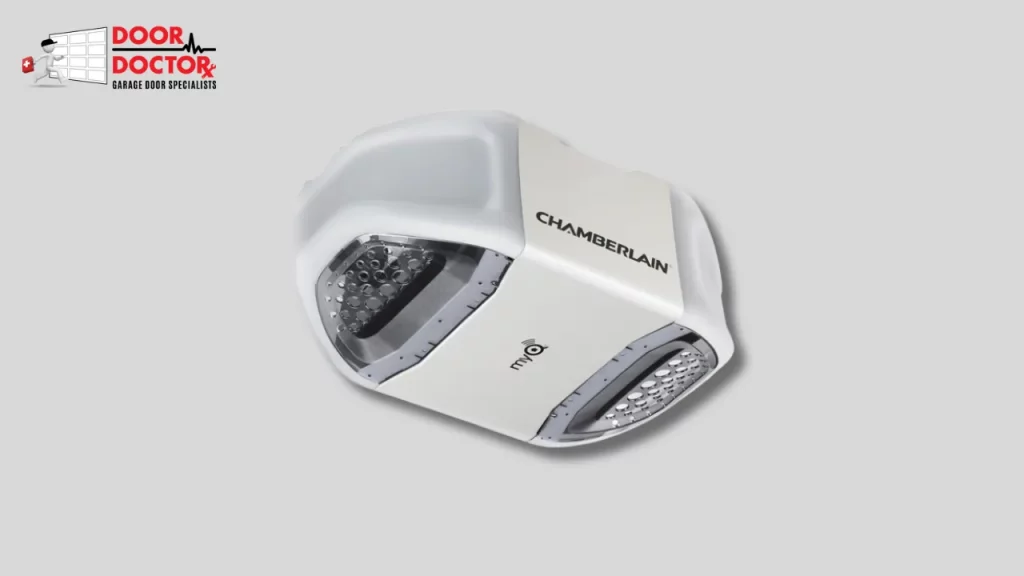
Some Chamberlain, LiftMaster, and Craftsman openers already include MyQ technology inside the motor unit. These models do not need an extra hub.
You likely have this type if your opener connects directly to your home Wi-Fi and you did not install a separate hub when setting up MyQ.
Depending on the model, reconnecting this type may involve a Learn button, Program button, adjustment button, or wall control menu. Check the model number before pressing and holding any control.
2. MyQ Smart Garage Hub
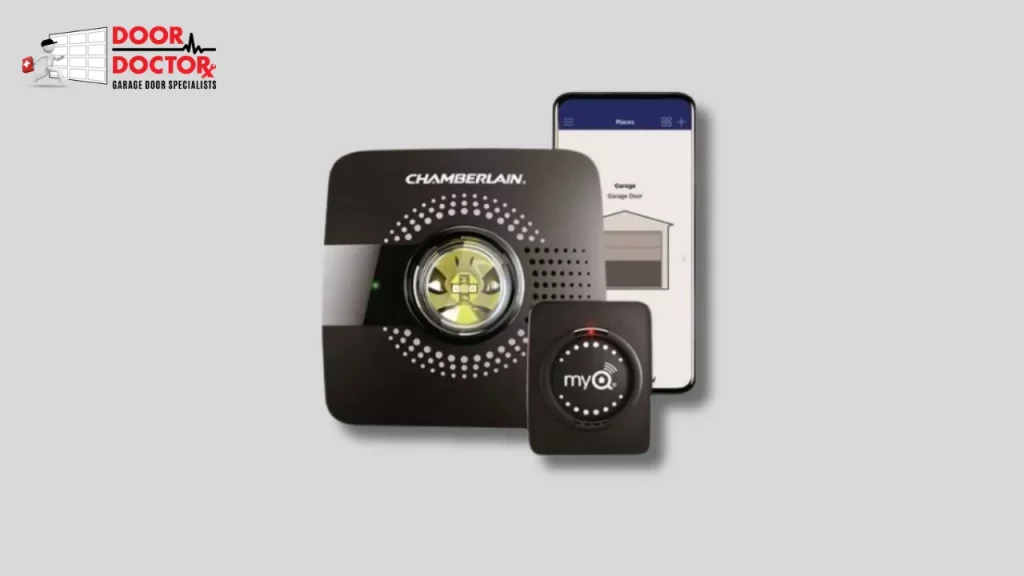
If your opener does not have built-in MyQ, the Smart Garage Hub is what makes it smart. This small device mounts inside your garage and communicates with the opener through a door-position sensor.
You likely have this type if you see a separate hub plugged in and mounted near the opener. Resetting a Smart Garage Hub is different from resetting an opener with built-in MyQ.
3. MyQ App or Account
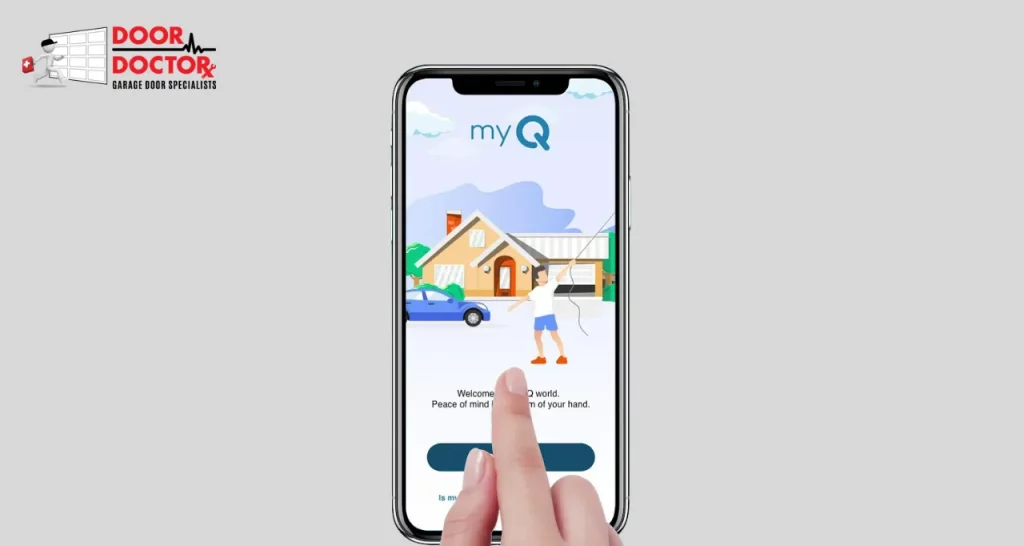
Sometimes the problem is not the hardware. The app may hold on to old device information, or your account may still show a garage door you no longer use.
In these cases, you may need to remove the device through the app or unlink it from your account. This does not involve pressing buttons on the opener or hub, but it clears the connection between the app and your equipment.
How to Reset a MyQ Garage Door Opener with Built-In Wi-Fi
If your garage door opener already has MyQ built in, start by reconnecting Wi-Fi before attempting a full reset.
Important: Do not hold the Learn or Program button longer than the instructions for your model require. Holding it too long may erase remotes, keypad programming, or other connected accessories.
1. Find the Learn or Program Button
Look at the motor unit mounted on the ceiling or wall of your garage. Find the model number and locate the Learn, Program, adjustment, or Wi-Fi controls.
The color and location of these controls vary by model. They may be yellow, purple, red, orange, or located beneath a control panel.
2. Press and Hold the Button
Follow the MyQ app prompts or the manufacturer’s instructions for your exact model before pressing and holding any control.
Some openers use a wall control menu, while others require a specific button sequence. Do not use a general hold time unless it matches the instructions for your opener.
3. Watch for the Confirmation
The opener may beep, blink, or display a Wi-Fi indicator when it enters setup mode. The exact confirmation signal varies by model.
Once the opener is ready, continue the setup through the MyQ app.
4. Reconnect the Opener in the MyQ App
Open the MyQ app and choose the option to add or reconnect a device. Follow the prompts and connect the opener to your home Wi-Fi network.
Use the correct network name and password. Many MyQ devices require or work best with a strong 2.4 GHz Wi-Fi connection.
5. Test the Garage Door Opener
After setup, test the opener through the MyQ app while standing near the garage. Confirm that the door opens, closes, and displays the correct position.
Then test the wall button, remotes, and keypad. If the app works but the opener still behaves poorly, the problem may not be related to the MyQ connection.
How to Reset a MyQ Smart Garage Hub
If you use a separate MyQ Smart Garage Hub, work with the hub rather than immediately resetting the opener motor unit.
1. Unplug the Hub
Unplug the hub from power and wait about 30 seconds. This allows the device to fully power down.
Plug it back in and wait for the LED light to stabilize before continuing.
2. Locate the Settings Button
Look for the gear or settings button on the hub. It may be on the front, side, or back of the device, depending on the model.
Make sure you are pressing the hub’s settings button rather than the Learn button on the garage door opener motor.
3. Press and Hold the Settings Button
Some Smart Garage Hub models use a press-and-hold sequence to clear Wi-Fi or device information. However, the required hold time and LED pattern vary by model.
Follow the instructions for your exact hub. Holding the button too long or repeating the sequence may erase additional information, including paired sensors.
4. Add the Hub Back in the MyQ App
Open the MyQ app on your smartphone or tablet. Make sure your phone is connected to your home Wi-Fi network.
Select Add Device and follow the instructions to reconnect the hub to Wi-Fi and pair it with the garage door opener.
Make sure the hub is close enough to communicate with the opener and door sensor. If the hub cannot communicate with the sensor, the app may show the wrong door status or fail during setup.
If the hub reconnects but the app still shows the wrong door position, check the sensor. Make sure it is securely mounted, has a working battery, and is paired correctly with the hub.
How to Reset the MyQ App and Account
Open the MyQ app on your smartphone or tablet. Make sure your phone is connected to your home Wi-Fi network.
Select Add Device and follow the instructions to reconnect the hub to Wi-Fi and pair it with the garage door opener.
Make sure the hub is close enough to communicate with the opener and door sensor. If the hub cannot communicate with the sensor, the app may show the wrong door status or fail during setup.
If the hub reconnects but the app still shows the wrong door position, check the sensor. Make sure it is securely mounted, has a working battery, and is paired correctly with the hub.
Sometimes the problem does not come from the opener or hub. The MyQ app may hold outdated details that cause recognition or connection problems. Removing and reconnecting the device can help clear this information.
Step 1: Open Device Management
After logging into the MyQ app, tap the menu or settings icon. Look for Devices or Device Management, where your connected garage door openers are listed.
Choose the opener or hub causing the issue.
Step 2: Remove the Device
Remove or delete the old, duplicate, or unused device from your account.
Do not delete a device only because it is temporarily offline. Try checking the Wi-Fi connection first.
Step 3: Log Out and Back In
After removing the device, log out of the MyQ app and sign back in. This may refresh your account information and clear temporary app issues.
You can also update the app or restart your phone before adding the opener again.
Step 4: Add the Device Again
Use the Add Device option in the MyQ app and follow the setup prompts. Keep your phone near the opener or hub during setup.
If pairing fails, check the Wi-Fi signal, app permissions, Bluetooth settings, and whether the device is linked to another account.
Step 5: Unlink Your Account Before Passing the Opener to Someone Else
If you are selling your home or giving the opener to someone else, remove it from your account to protect your privacy.
A Wi-Fi reset alone may not remove the account association. Follow the ownership-transfer instructions for your model if the device remains linked.
Opener Still Not Working? Try These Fixes After a Reset
If your MyQ garage door opener still is not working after a reset or reconnection, the issue may involve Wi-Fi, the app, the hub, the opener, or the garage door itself.
| Problem | Possible Cause | What to Try |
|---|---|---|
| MyQ app says opener is offline | Weak Wi-Fi or lost connection | Restart the router, check the signal, and reconnect MyQ |
| MyQ will not connect to Wi-Fi | Wrong network, password, or weak signal | Verify the network details and improve the garage Wi-Fi signal |
| Device does not appear in app | Pairing, permission, or phone issue | Check app permissions, restart the phone, and try again |
| App keeps showing errors | App data or account issue | Update the app, sign out and back in, or reinstall it |
| Door works from wall button but not app | MyQ connection issue | Reconnect Wi-Fi and repeat the app setup |
| Door will not close and opener light blinks | Safety sensor problem | Clean and align the photo eyes and clear the door path |
| App shows the wrong door position | Loose or unpaired door sensor | Secure, test, or re-pair the sensor |
| Opener hums but door does not move | Opener or door hardware issue | Stop using it and call for service |
Still having trouble after resetting MyQ? If the app reconnects but the opener still will not run properly, Door Doctor can inspect the opener, sensors, controls, and door system to identify the real issue.
Common MyQ Wi-Fi Problems
MyQ connection issues often happen after a router replacement, Wi-Fi password change, network-name change, internet outage, or app update. If the opener worked before and suddenly stopped, start by checking your network.
Make sure the Wi-Fi signal reaches the garage. If the signal is weak, the opener may connect briefly and then go offline again. A properly positioned Wi-Fi extender may help if the router is far from the garage.
Many smart garage door devices use a 2.4 GHz connection because it generally reaches farther through walls and garage materials than 5 GHz.
Also confirm that the opener or hub has power, the router is connected to the internet, the Wi-Fi password is correct, the app has the required phone permissions, and the device is not linked to another account.
When Resetting MyQ Will Not Fix the Problem
A MyQ reset can correct connection and app problems, but it will not repair a failing opener.
You may need professional service if the opener hums but does not move, the door reverses unexpectedly, the wall button does not work, the door feels unusually heavy, the door is crooked or stuck, or the opener makes grinding or straining noises.
These problems may involve the motor, gear assembly, safety sensors, wiring, circuit board, springs, tracks, cables, rollers, or door balance.
Do not keep forcing the opener to run if the door is stuck, crooked, or struggling. Running an opener against a door problem can cause additional damage.
When to Call Door Doctor for MyQ Garage Door Opener Help
Call Door Doctor if your MyQ app reconnects but the garage door still will not open or close correctly. The problem may involve the opener, safety sensors, wiring, door balance, springs, tracks, or other hardware.
Door Doctor can inspect the opener and garage door system and determine whether adjustment, repair, or replacement is appropriate. If the opener is older or unreliable, the team can also help with replacement and installation.
Schedule garage door opener service with Door Doctor if the app reconnects but the door still hums, reverses, stops, or fails to move.
FAQs About Resetting a MyQ Garage Door Opener
Final Thoughts
Resetting MyQ can fix many app and Wi-Fi problems, especially after a router change, password update, or device pairing issue. If the garage door still will not open or close after the reset, the problem may be with the opener, safety sensors, wiring, or door hardware.
If the reset works, reconnect the system and test the garage door from the app, wall button, remote, and keypad. If the app reconnects but the opener still does not run properly, the issue may be with the opener or garage door system.
Door Doctor can help diagnose the issue and recommend the right repair or replacement option. Contact Door Doctor today if your MyQ garage door opener still is not working properly.